

Key Takeaways
- Accessibility features on modern smartphones are built into the operating system and cost nothing to use.
- Many of these tools benefit people without disabilities, including anyone in a noisy, bright, or hands-free situation.
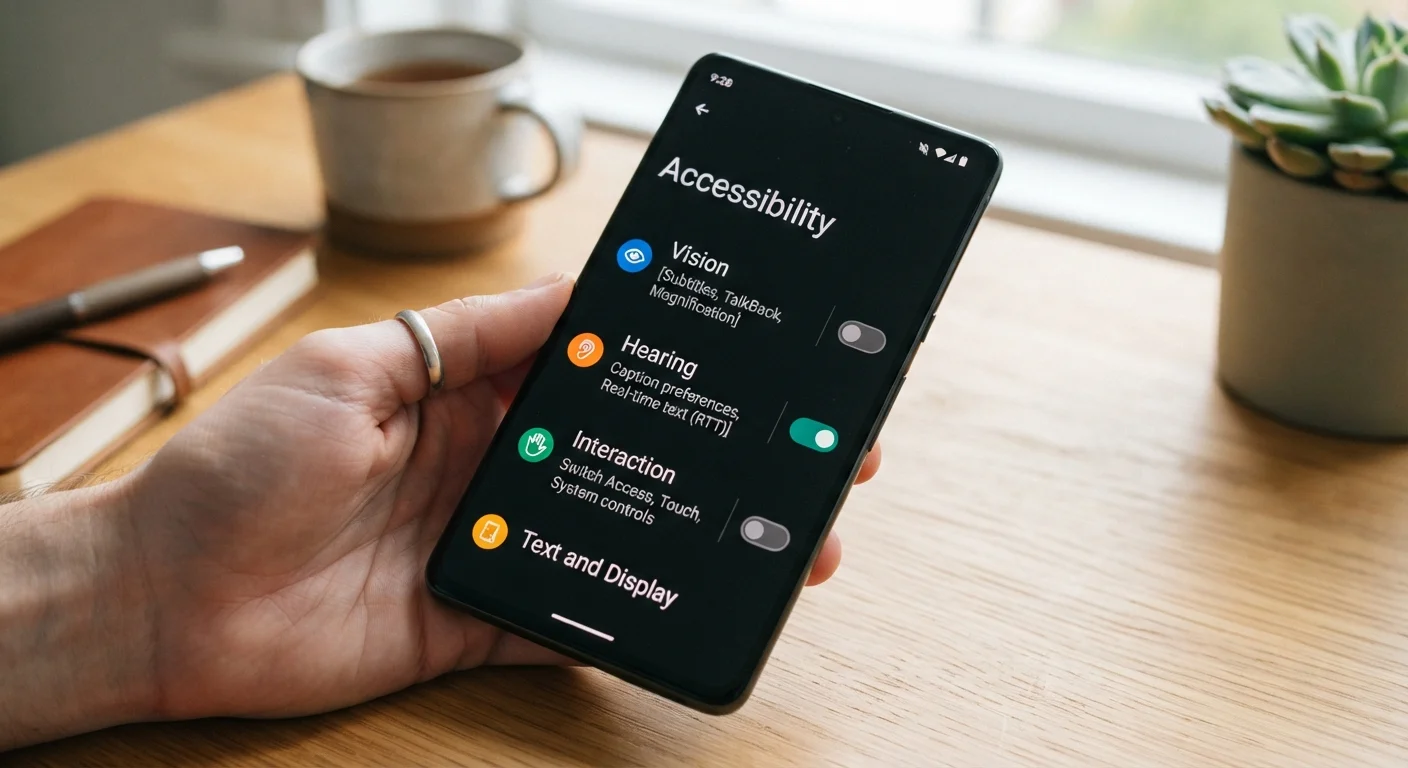
- You can find most of these settings under Accessibility in your phone's main Settings app.
- Features like Live Captions and Sound Recognition work in real time without an internet connection on many devices.
- Customizing these settings takes minutes and can meaningfully change how you interact with your phone daily.
The settings most people scroll past
Every major smartphone ships with an Accessibility section buried inside Settings. Most people open it once, see terms like "switch control" or "assistive touch," and assume none of it applies to them. That assumption costs them tools that are genuinely useful in everyday situations.
Accessibility features were built for people with vision, hearing, motor, or cognitive differences, and they work well for that purpose. They also turn out to be practical for anyone: someone driving, someone in a loud environment, an older adult who wants larger text, or anyone who has ever wished their phone could just read something aloud. The features below are available on both iOS and Android unless noted, and none require a download.
If you have already thought about how your phone handles interruptions, the guide to smarter notification habits pairs well with several of the tools here.
Live Captions
Live Captions generates real-time text for any audio playing on your phone, including videos, voice messages, and phone calls. Google introduced it on Pixel devices and it has spread to most modern Android phones. Apple added a similar feature called Live Captions to iPhone with iOS 16.
The transcription happens on the device itself on most phones, so audio is not sent to a server. Accuracy varies with accents and background noise, but it is reliable enough to follow a conversation or a video without earbuds. It works in a noisy room, in situations where sound would be disruptive, or any time someone forgot their headphones.
On Android, find it at Settings, then Accessibility, then Live Caption. On iPhone, go to Settings, then Accessibility, then Live Captions.
Live Captions transcribes audio in real time, directly on the device, at no cost.
Sound Recognition
Sound Recognition (iPhone) and Sound Notifications (some Android devices with Google's accessibility suite) listen for specific sounds, such as a smoke alarm, doorbell, baby crying, or running water, and send you a phone alert when they detect one.
This was designed for people who are deaf or hard of hearing, but it has obvious practical uses for anyone. If you wear noise-canceling headphones while working from home, Sound Recognition can alert you to a fire alarm or a knock at the door without you having to take your headphones off periodically to check.
On iPhone, go to Settings, then Accessibility, then Sound Recognition. You choose which sounds to monitor from a preset list.
Sound Recognition alerts you to alarms, doorbells, and other sounds when you cannot hear them directly.
Back Tap (iPhone) and accessibility shortcuts
Back Tap, available on iPhone 8 and later running iOS 14 or newer, lets you double-tap or triple-tap the back of the phone to trigger an action. Options include taking a screenshot, opening the camera, scrolling down, or activating any accessibility shortcut. There is no button to press and no screen area to tap.
Android phones offer a similar feature on many models, sometimes called Quick Tap or a gesture shortcut, though the exact name and availability depend on the manufacturer and Android version.
Back Tap is practical for one-handed use, for people with limited fine motor control, or simply for anyone who wants a faster way to screenshot. Find it on iPhone at Settings, then Accessibility, then Touch, then Back Tap.
Tapping the back of an iPhone can trigger actions like screenshots without touching the screen.
Display and text size adjustments
Both iOS and Android let you increase text size independently of display zoom, so you can make words larger without scaling every icon and image on screen. iOS also has a Bold Text toggle and a "Larger Text" option that pushes text bigger than the standard slider allows.
Display Zoom, a separate setting, scales the entire interface. Reduce White Point (iOS) dims the brightest whites without lowering general screen brightness, which helps in dark rooms. Color Filters let you shift the screen to grayscale or adjust for specific types of color blindness.
These settings matter for more than aging eyes. Grayscale mode, for example, makes the phone visually less stimulating, which some people find reduces the pull to keep scrolling. It is under Settings, then Accessibility, then Display and Text Size on iPhone.
Grayscale mode makes the screen less visually stimulating, which can reduce mindless scrolling.
Spoken content and screen readers
Speak Screen (iOS) reads aloud everything currently visible on screen when you swipe down with two fingers from the top. Speak Selection reads only highlighted text. Both use the same text-to-speech engine and let you adjust reading speed.
Android has Select to Speak, which works similarly: activate it from the Accessibility menu and then tap any text on screen to hear it read aloud. These are different from full screen readers like VoiceOver (iOS) or TalkBack (Android), which describe every interface element for people who cannot see the screen. Spoken content features are lighter tools for sighted users who want audio assistance.
Practically, Speak Screen is useful for following a recipe with wet hands, listening to a long article while commuting, or reviewing a document without staring at a screen.
Speak Screen reads anything on your iPhone display aloud, useful hands-free in dozens of situations.
AssistiveTouch and motor shortcuts
AssistiveTouch (iOS) puts a floating on-screen button that opens a customizable menu of actions: lock screen, adjust volume, take a screenshot, or trigger a gesture the phone would normally require two hands to perform. It was designed for people with limited hand mobility but serves anyone whose physical buttons are broken or hard to press.
Android has a similar tool called Accessibility Menu, which adds a large on-screen toolbar with shortcuts to common actions. Both reduce dependence on physical buttons and make one-handed use more practical.
Find AssistiveTouch on iPhone at Settings, then Accessibility, then Touch. Find Accessibility Menu on Android at Settings, then Accessibility, then Accessibility Menu.
AssistiveTouch adds a floating menu that replaces physical button presses with a single tap.
Where to go from here
Every feature on this list lives inside the Accessibility section of your Settings app. On iPhone, go to Settings, then Accessibility. On Android, the path is Settings, then Accessibility, though some manufacturers label it slightly differently. Spending ten minutes in that menu is a reasonable way to find controls you did not know existed.
These settings interact with the rest of your phone. If you adjust text size here, it carries through most apps. If you turn on color filters, the change is system-wide. Test each setting in a low-stakes moment rather than right before you need it.
Try one setting at a time
Accessibility settings can interact in unexpected ways when you turn on several at once. Enable one feature, use it for a day, and then decide whether to keep it before moving to the next. This also makes it easier to reverse a change if something feels off.
Your phone's broader privacy and permission controls are worth reviewing alongside accessibility settings. The phone privacy settings walkthrough covers what each permission actually controls.