

Key Takeaways
- Connection types vary by location: fiber, cable, DSL, and fixed wireless are not equally available everywhere.
- A modem connects your home to the provider's network; a router distributes that connection as Wi-Fi.
- You can rent equipment from your provider or purchase compatible hardware yourself.
- Placing your router centrally and changing the default Wi-Fi password are two of the most useful first steps.
- Promotional pricing, equipment rental fees, and taxes often make the actual bill higher than the advertised rate.
Start here
What to sort out before you sign up
Next
The equipment that runs your connection
Then
How the installation works
Finally
What to do after you're online
What to sort out before you sign up
Before you contact any provider, find out which connection types reach your address. Fiber is available in many urban and suburban areas. Cable is common across most cities and larger towns. DSL and fixed wireless cover areas where fiber and cable have not been built out. The type available to you affects the speeds you can get and how your connection will behave day to day. See a breakdown of each connection type to understand the practical differences.
Think about how many devices your household will connect at once and what those devices will do. A household that streams video, works from home, and has several phones and tablets needs more bandwidth than one doing light browsing. Understanding what your plan actually includes before you commit prevents surprises on the first bill.
The equipment that runs your connection
Modem
A device that connects your home to your internet provider's network by translating the signal from the provider's cable or phone line.
Router
A device that takes the internet connection from your modem and distributes it wirelessly to your phones, computers, and other devices.
Gateway
A single combined device that performs both the modem and router functions. Many providers supply one instead of two separate units.
Bandwidth
The maximum amount of data your connection can transfer per second. Higher bandwidth means more devices can use the internet simultaneously without slowing each other down.
ISP (Internet Service Provider)
The company that sells you internet access and connects your home to the broader internet.
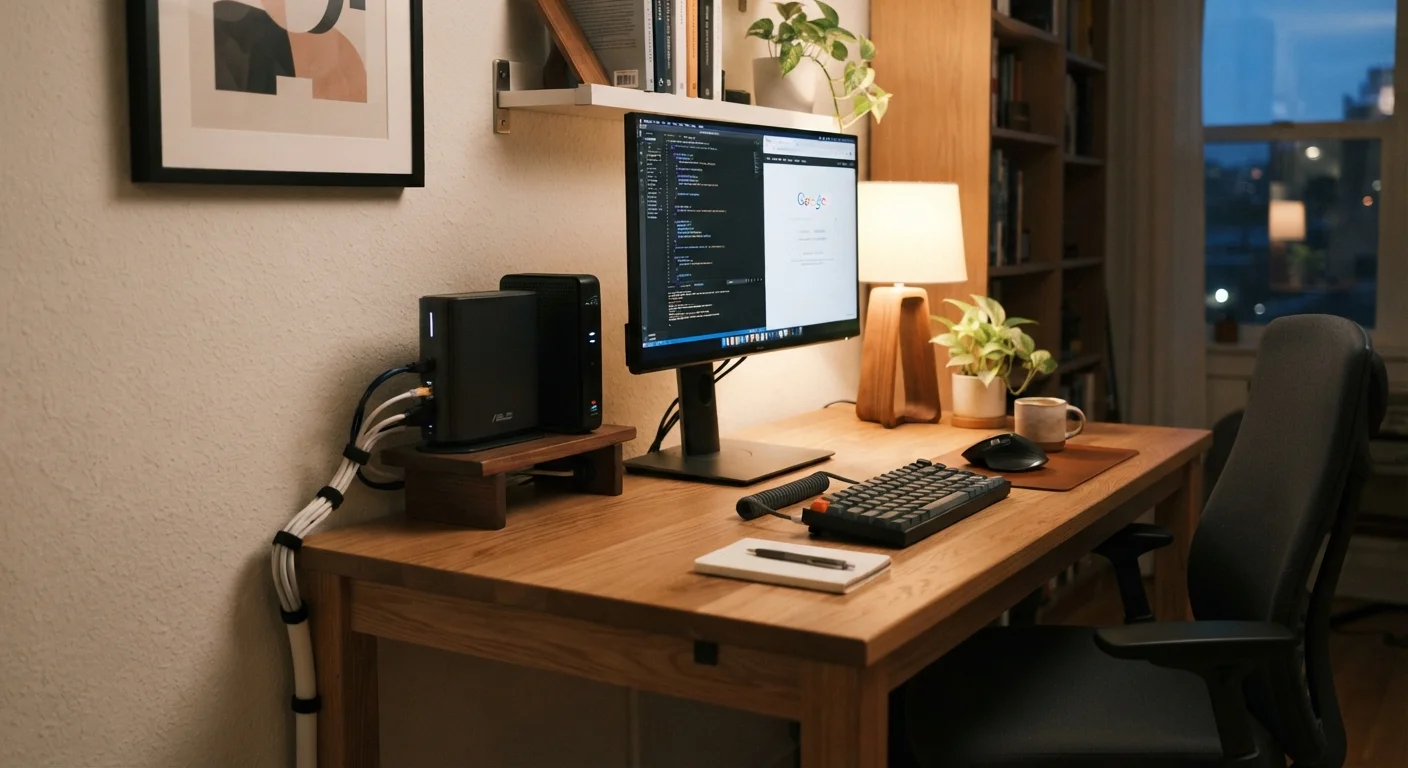
Two functions make your internet work at home. A modem connects your home to your provider's network. A router takes that connection and broadcasts it as Wi-Fi. Your provider may supply a single gateway unit that handles both, or two separate devices.
You can rent equipment from your provider or buy your own. Renting is simpler at setup and means the provider handles replacements. Buying compatible hardware removes the recurring rental fee. If you go the purchase route, confirm the device is on your provider's approved compatibility list before ordering.
Renting vs. buying your equipment
Renting from your provider is simpler at the start: if something breaks, they replace it. Buying compatible hardware costs more upfront but removes the monthly rental fee, which can add up over a few years. Check that any equipment you purchase is on your provider's compatibility list before buying.
How the installation works
Cable and fiber connections almost always require a technician visit for the initial setup, particularly to connect the line coming into your home. DSL and some fixed wireless services can be self-installed using a kit the provider ships to you. Either way, follow the instructions that come with the equipment: connect the modem to the incoming line, connect the router to the modem with an ethernet cable if they are separate units, then power both on.
Once the modem's indicator lights show a stable connection, connect a device to your Wi-Fi network. The default network name and password are printed on a label on the equipment. Change both immediately after your first login.
Change your default Wi-Fi credentials early
The network name and password printed on your router's label are the same for every unit of that model. Changing both through your router's admin settings makes your network harder to access without your permission. Your router's documentation will show you how to log in to those settings.
What to do after you're online
Router placement affects signal quality throughout your home. A central location, away from thick walls, large metal appliances, and multiple floors of concrete, distributes Wi-Fi more evenly than a corner or closet. If signal still falls short in parts of your home, a Wi-Fi extender or a mesh system can fill in the gaps.
Review your first bill carefully. Internet bills include line items for equipment rental, taxes, and fees that the advertised price does not reflect. Promotional rates also expire, usually after one to two years.
If speeds feel slower than your plan promises, restart your modem and router before calling support. What actually happens when you reboot your router is worth reading so you know when a restart helps and when the problem needs a different fix.
Watch for fees beyond the advertised price
Internet providers often advertise a monthly rate that does not include equipment rental, installation charges, or taxes. The first bill can be noticeably higher than expected, and introductory pricing typically expires after 12 to 24 months. Read the service agreement before signing up.