

Key Takeaways
- Cloud storage saves your files on remote servers, not only on your phone's internal memory.
- iCloud, Google Photos, and OneDrive each give you a free storage tier with paid upgrades available.
- When your cloud storage is full, new photos and files stop syncing and may be at risk if your phone is lost.
- Uploading to the cloud uses mobile data unless you restrict syncing to Wi-Fi only.
- You can check how much cloud storage you have used directly from your phone's settings.
Cloud storage
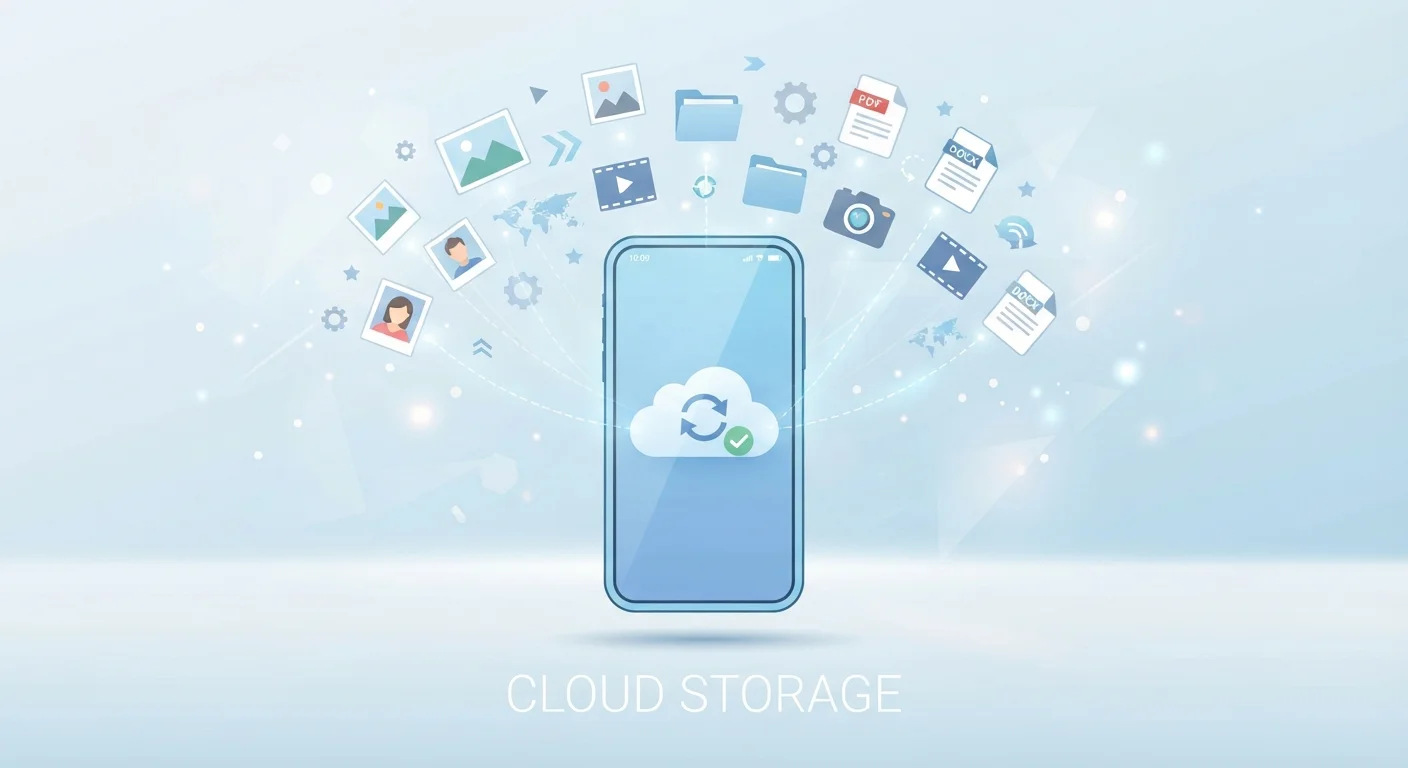
Cloud storage means your files, photos, and data are saved on remote servers run by a company rather than only on your device. When your phone uploads a photo to the cloud, a copy travels over the internet to those servers and stays there, accessible from any device you sign in to. Your phone may then delete its local copy to free up space.
The 'cloud' is physically a network of large data centers, typically maintained by companies such as Apple, Google, or Microsoft, with redundancy built in to prevent data loss.
What 'the cloud' actually means for your phone
When you take a photo on your phone, it lands first in your device's internal storage. That storage is limited, typically 64 GB to 256 GB depending on your phone. Cloud storage is a second location where copies of those files are sent automatically over the internet, sitting on servers maintained by a technology company.
Three services handle the vast majority of personal cloud storage in the US. iCloud is Apple's service, built into every iPhone. Google Photos and Google Drive serve Android phones by default, though they also work on iPhones. OneDrive is Microsoft's service, integrated into Windows and available as a phone app. Each gives you a free storage tier, generally 5 GB to 15 GB, with paid plans available if you need more room.
The word 'sync' comes up often in this context. Syncing means your phone and the cloud are kept in agreement: a photo you take appears in both places, and a file you delete on one device disappears from the other. This is different from a simple backup, which is a one-way copy made at a set time.
Where your photos actually live
With most cloud photo services turned on, your phone stores a smaller, compressed preview of each image locally and keeps the full-resolution version in the cloud. This is sometimes called 'optimize storage.' The phone displays the preview instantly but downloads the full file only when you open or share it.
That setup means deleting a photo from your phone's camera roll can also delete it from the cloud, depending on your settings. The reverse is also true: clearing photos in iCloud or Google Photos removes them from your device. Before you delete anything to free up space, it is worth confirming which version you are deleting and whether a copy exists elsewhere. Understanding what fills your phone's storage can help you read those breakdowns clearly.
Set syncing to Wi-Fi only
Restricting cloud photo uploads to Wi-Fi prevents unexpected mobile data use. Both iCloud and Google Photos include this option in their settings. Uploads will queue and complete automatically the next time your phone connects to a known Wi-Fi network.
Files you store only in a cloud service, with no local copy, become inaccessible when you have no internet connection. Anything you need offline should have a downloaded copy on the device.
What happens when storage runs out
Cloud storage quotas are shared across services. On iCloud, your photos, device backups, messages, and iCloud Drive files all draw from the same pool. When that pool fills, photos stop uploading, backups stop completing, and in some cases new emails stop arriving on the device.
The practical risk is straightforward: photos taken after the quota is hit exist only on your phone. If the phone is lost, damaged, or stolen before you clear space, those photos are gone. Checking your cloud storage level occasionally, rather than waiting for a warning notification, avoids that situation.
To check on iPhone: Settings, your name, iCloud, and the colored bar near the top shows what is using space. On Android: open Google Photos, tap your profile photo, and select 'Manage storage.' Both views let you identify large files or old backups worth removing.
Cloud storage, Wi-Fi, and mobile data
Uploading files to the cloud uses internet bandwidth. On a home Wi-Fi connection, that rarely matters. Over mobile data, a burst of photo uploads after a busy day can consume a meaningful portion of a monthly data allowance. Mobile data works differently from Wi-Fi, and background syncing is one of the quieter ways phones use it.
Both iCloud and Google Photos let you restrict uploads to Wi-Fi only. On iPhone: Settings, Photos, then turn on 'Use Cellular Data' to see the toggle. In Google Photos: tap your profile photo, Photo settings, then Backup, and set 'Backup over Wi-Fi only.' Making this change stops syncing when you are away from a known network, which also means uploads queue up until Wi-Fi is available again.
If you travel and want your files accessible from another device, cloud storage is one reliable way to carry them without a physical drive. Organizing travel documents digitally covers that use case in more detail, including how to keep copies accessible when connectivity is unreliable.