

Key Takeaways
- Your phone's storage holds the OS, apps, media, and cached data, all competing for the same fixed space.
- App cache files are temporary data that apps store to load faster, and they can grow very large over time.
- Photos and videos are almost always the single largest category on most people's phones.
- The operating system and system files use a portion of your stated storage that you cannot reclaim.
- Reading the storage breakdown in your phone's settings is the clearest first step before deleting anything.
Phone storage
Phone storage is the built-in space your device uses to hold everything on it: the operating system, apps, photos, videos, music, messages, and the temporary files apps create while running. It is separate from RAM (which handles what's actively running right now) and separate from any cloud service. When that space runs out, your phone cannot save new files or update apps until something is removed.
Storage is measured in gigabytes (GB). Most phones show a breakdown by category in Settings, which is the most accurate way to see what is using space rather than relying on guesswork.
How your phone divides its storage
Every phone arrives with a fixed amount of storage printed on the box, but that number is never the amount of free space you actually get. The operating system (iOS or Android) installs itself first, claiming anywhere from 5 to 15 GB depending on the version and the manufacturer's software layer on top of it. What remains is shared across every app, file, and piece of data you add.
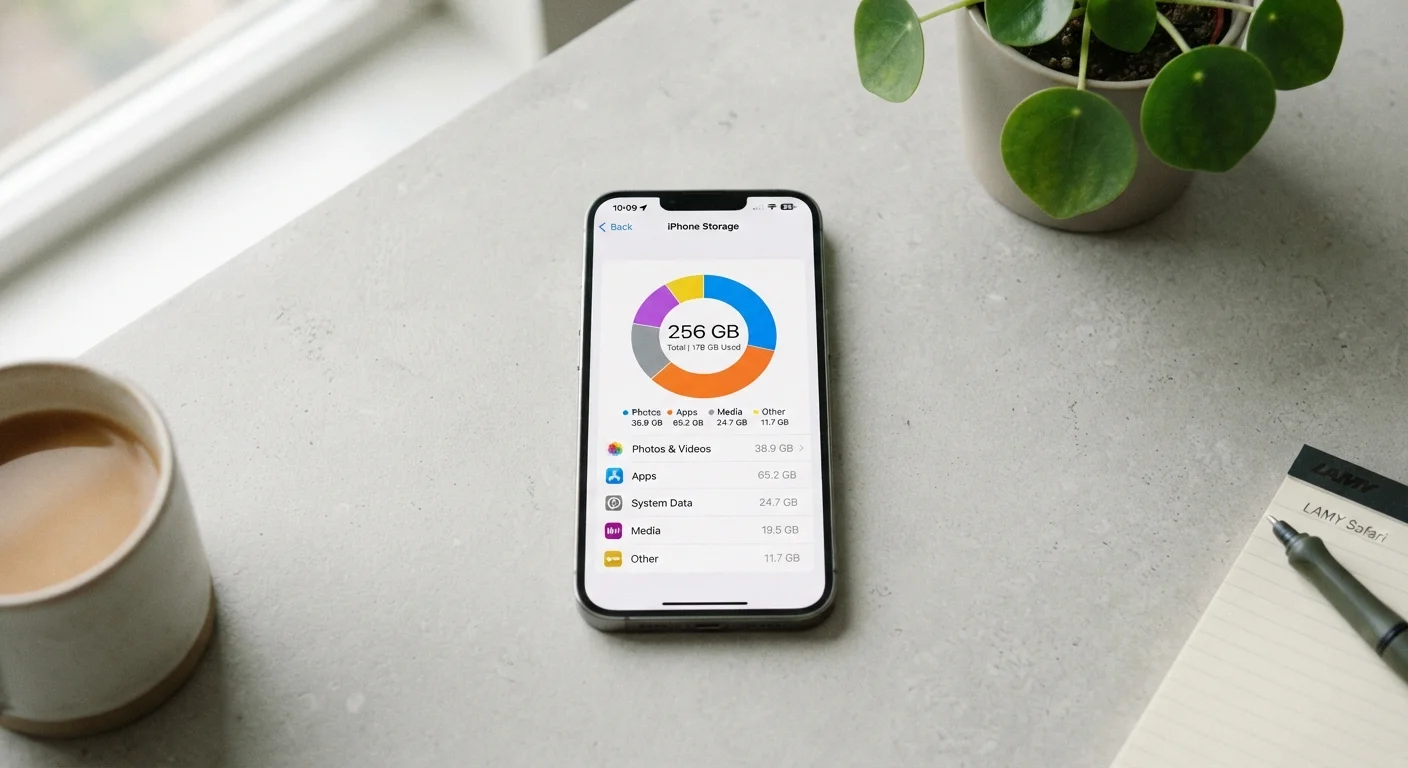
Your phone's settings show a breakdown of this space, usually under a menu called Storage or Device Care. The categories you will typically see are: apps, photos and videos, audio, documents and other files, system data, and cached data. Each category covers a different type of content, and each one grows differently depending on how you use your phone.
System data is the one category you cannot directly control. It includes the OS itself, pre-installed apps, and the files your phone writes automatically when performing updates or logging errors. On many phones, this category appears larger than expected because it also catches data that does not fit cleanly into other buckets.
The categories that grow the fastest
Photos and videos are the largest consumer of storage on most phones. A single minute of 4K video recorded at 60 frames per second can exceed 400 MB. If you shoot video regularly and never move files off the device, that category alone can fill a phone within months. Understanding where your photos actually live helps clarify whether your images are stored locally, in the cloud, or both.
Apps are the second major category, and the number that matters is not just the app's base size but the data it accumulates. A navigation app downloads offline maps. A streaming app caches episodes for offline viewing. A social media app stores every image and video you have scrolled past in its cache folder. The app store listing shows the app's install size, but the total footprint after regular use is often two to five times larger.
Messages deserve attention because they are easy to overlook. The text itself weighs almost nothing, but any photo, video, or audio file shared inside a conversation is stored in full on your phone. A year of active group chats with heavy photo sharing can quietly consume several gigabytes.
Check your storage before you delete
Open your phone's storage breakdown in settings before removing anything. Deleting small apps at random rarely makes a meaningful difference. The breakdown tells you which category is actually responsible, so you can target the right files first.
Reading your storage screen accurately
The storage breakdown screen in settings is the most reliable place to start. On an iPhone, go to Settings, then General, then iPhone Storage. On most Android phones, go to Settings, then Battery and Device Care (or Storage, depending on the manufacturer), then Storage. Both show a bar divided by category and a list below it with sizes.
Tap into each category to see which specific apps or file types are responsible. The apps list on an iPhone, for example, shows each app's total size alongside its documents and data, so you can see at a glance which apps have accumulated the most local content over time.
One figure that surprises many users is labeled System Data on iOS or Cached Data on Android. These numbers can be several gigabytes and seem impossible to reduce. System data on iOS includes caches the OS manages automatically, streaming content buffers, and Siri voice files. Android's cached data includes files individual apps have stored to speed up loading. Clearing app cache through settings (not deleting the app itself) reclaims some of this space without removing your personal data or account information inside those apps.
Before deleting anything, confirm whether your photos are safely backed up elsewhere. Preparing your phone before handing it off covers the same verification steps, which apply equally when you are simply trying to free up space on a phone you plan to keep.
What storage does not include
Storage is separate from mobile data. Storage tracks what is saved on your device; mobile data tracks what travels over your cellular connection. An app can use very little storage while consuming significant mobile data each month, or the reverse. What mobile data actually is explains that distinction in full if the two feel related but separate in confusing ways.
Storage also has no direct connection to battery health. A full storage drive does not drain your battery faster on its own, though a phone struggling to manage a nearly full drive may run more background processes that indirectly affect performance. Battery health is its own separate metric governed by charge cycles, not available space.