

Key Takeaways
- Two-factor authentication requires a second proof of identity beyond your password, making unauthorized access much harder.
- Even if someone steals your password, they cannot log in without the second factor you control.
- Authenticator apps are more secure than SMS text codes for receiving your second factor.
- Most major apps and services, including email, banking, and social media, support two-factor authentication.
- Enabling it takes only a few minutes and works the same way across most platforms.
What you will need
What two-factor authentication actually does
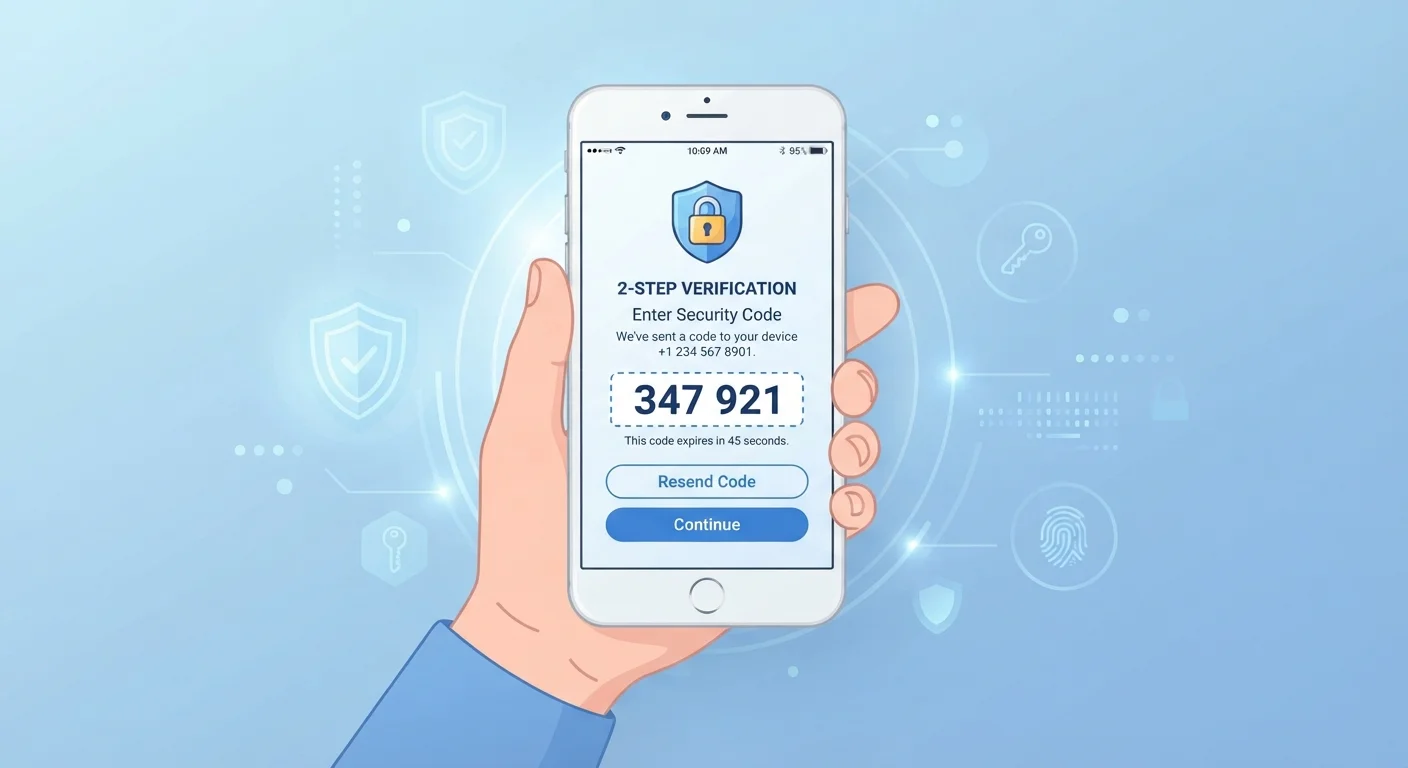
A password is one lock on your account. Two-factor authentication (2FA) adds a second lock that only you can open at the moment you log in. When you enter your password, the service then asks for a second piece of proof: a short code sent to your phone, generated by an app, or delivered by email. Both pieces must be correct for access to go through.
This matters because passwords get compromised regularly, through data breaches at websites, phishing emails, or password reuse across multiple accounts. With only a password in place, a stolen credential is all an attacker needs. With 2FA active, a stolen password is not enough because the attacker would also need physical access to your second factor, which is almost always your phone.
For a broader look at hardening your accounts, the account security audit checklist covers passwords, recovery options, and connected apps in one review.
Authenticator apps work offline
Unlike SMS codes, authenticator apps generate codes locally on your device without needing a cell signal or data connection. This means you can still log in even when you have poor reception, such as when traveling.
How to set up two-factor authentication
The process is similar across most apps and services. Before you start, gather what you need:
What you will need
Go to your account's security settings
Open the app or website for the account you want to protect. Navigate to Settings, then look for a section called Security, Privacy and Security, or Account. On mobile, this is often behind a profile icon or a hamburger menu in the corner.
Find the two-factor authentication option
Look for a setting labeled Two-Factor Authentication, Two-Step Verification, or 2FA. These names all describe the same concept. Tap or click it to open the setup flow.
Choose your second-factor method
Most services offer two or three options:
- SMS text message: The service sends a code to your phone number each time you log in.
- Authenticator app: An app on your phone generates a fresh six-digit code every 30 seconds. You enter that code when prompted.
- Email code: A code is sent to your linked email address.
An authenticator app is the stronger choice because it does not depend on your mobile carrier and cannot be intercepted through SIM-swapping attacks. SMS is still far better than no second factor at all.
Verify the setup with a test code
The service will ask you to enter a code before finishing setup, to confirm that your chosen method is working. Retrieve the code from your text messages, email, or authenticator app and enter it in the field provided. Then confirm or save the setting.
Save your backup or recovery codes
After enabling 2FA, many services generate a set of one-time backup codes. These let you log in if you ever lose access to your phone or authenticator app. Write them down or save them in a secure location, such as a password manager or a locked note. Each code can typically only be used once.
Once setup is complete, your account will prompt you for a code on any new device or browser you use to sign in. Devices you use regularly can usually be marked as trusted, so you will not need to enter a code every single time.
If you want to extend this kind of protection to your social media accounts, the guide to locking down social media privacy settings walks through each platform in detail. For a wider look at what your phone shares and with whom, the phone privacy settings walkthrough covers the full range of controls available on your device.
Which accounts to protect first
Start with the accounts that would cause the most damage if compromised: your primary email address, your bank or financial apps, and any account tied to payment information. Email is especially worth protecting because it is often used to reset passwords on every other account you own.
Social media accounts are worth securing next. A compromised account can be used to scam your contacts or lock you out permanently. The Online Safety hub has additional guidance on protecting your digital presence more broadly.
Accounts you use rarely but that hold sensitive data, such as tax filing services or healthcare portals, belong on this list too. Most of these services already support 2FA; they simply do not require it by default.
Authenticator app (TOTP-compatible)
Generates time-based one-time codes for logging in, without relying on SMS text messages.
Account recovery codes
Backup codes provided by the service that let you regain access if you lose your second-factor device.